
Any recurring-billing service on WHMCS, one question comes up again and again: how much money did we actually make? Not what was invoiced, but what was paid.
WHMCS has several ways to answer this. Some are quick, and some take a little setup. This guide walks through each one so you can pick what fits your business.
What Does “Revenue Tracking” Mean in WHMCS?
Revenue tracking means measuring the money that comes in through paid invoices and transactions over a set period: a day, a month or a year.
It helps to know the difference between three terms:
- Invoiced amount: bills you have sent, paid or not.
- Income (cash received): payments that were actually recorded as transactions.
- Recurring revenue (MRR/ARR): the predictable income from active subscriptions.
WHMCS income reports are based on recorded transactions, so they show money received, not money billed.
Method 1: The Admin Dashboard
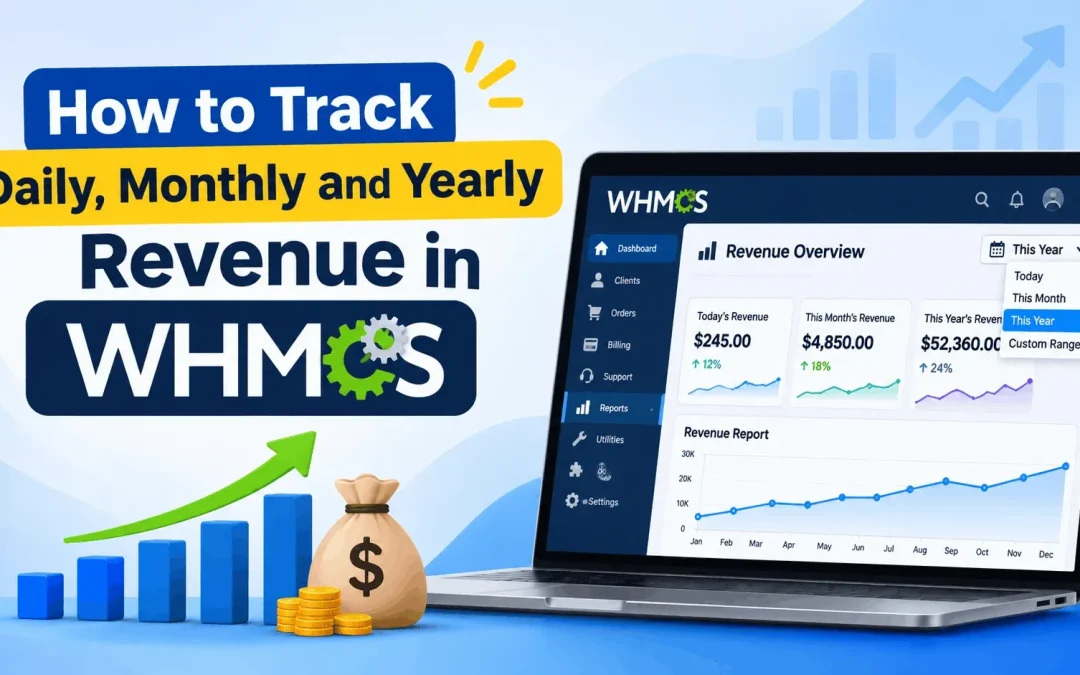
The fastest way to check your numbers is the dashboard you see after logging in to the admin area. Its income overview widget shows earnings for today, this month, this year and all time.
Pros:
- Zero setup
- Good for a quick daily check
Cons:
- No filters or breakdowns
- Not suitable for accounting or deep analysis
Method 2: Built-in WHMCS Income Reports
This is where most businesses should start. Open the Reports section in your admin area and look for the income-related reports.
Daily Revenue: Daily Performance Report
The Daily Performance report shows what happened each day of a chosen month, including income, new orders and signups. It is useful for spotting a sudden drop, for example after a payment gateway fails.
Monthly Revenue: Monthly Transactions Report
This report lists income by payment gateway for each month. If you accept cards, UPI-linked gateways and PayPal, you can see which one brings in the most. It also shows fees, which many store owners forget to account for.
Yearly Revenue: Annual Income Report
The Annual Income report gives a month-by-month view of an entire year, with totals. It is perfect for year-end reviews and tax preparation.
Other Useful Reports
- Income by Product: shows which plans or services earn the most.
- Income Forecast: estimates future income from active recurring services.
- Aging Invoices: lists overdue invoices that are delaying your cash flow.
Method 3: Exporting Data to Spreadsheets
Most WHMCS reports can be exported as CSV. Moving the data into Google Sheets or Excel lets you build your own charts and compare months side by side.
Pros:
- Flexible and free
- Easy to share with an accountant
Cons:
- Manual work every time
- Easy to make copy-paste errors
Method 4: Custom Reports and Analytics Tools
Larger businesses often outgrow standard reports. WHMCS supports custom report files, and its API and database can feed business intelligence tools such as Metabase or Google Looker Studio. Some teams also use specialist SaaS analytics tools or ask a WHMCS development partner like SmartertsX to build tailored dashboards.
Pros:
- Live dashboards with MRR, churn and customer lifetime value
- Fully customisable
Cons:
- Needs technical skill or a developer
- Extra cost and ongoing maintenance
Common Mistakes That Distort Your Numbers
- Mixing currencies. If you bill in USD and INR, check how your reports convert them.
- Ignoring refunds. Make sure refunds are recorded as transactions, or income looks higher than it is.
- Forgetting gateway fees. Revenue is not profit.
- Missing manual payments. Bank transfers must be added to invoices by hand, or they will not appear in reports.
- Comparing the wrong dates. Reports use transaction dates, not invoice dates.
A Tip for Indian Businesses
If you operate in India, your financial year runs from April to March, but the Annual Income report follows the calendar year. Add up April–March figures from the monthly reports, or export them, when preparing GST returns and income tax filings. Also keep tax-inclusive and tax-exclusive amounts separate, since GST collected is not your income.
A Simple Revenue Tracking Routine
You do not need anything fancy. A routine like this works for most small and mid-sized businesses:
- Daily (2 minutes): check the dashboard widget and failed payments.
- Weekly (10 minutes): review the Aging Invoices report and follow up on overdue payments.
- Monthly (30 minutes): run the Monthly Transactions report and compare it with the previous month.
- Yearly: use the Annual Income report, then reconcile it with your bank statements.
Final Thoughts
You do not need expensive software to understand your WHMCS revenue. Start with the dashboard and built-in reports. Add spreadsheets when you want deeper insight, and consider custom dashboards only when your business is large enough to need them.
The best system is the one you actually check regularly. Pick a routine, stay consistent, and your numbers will quickly start telling you where to grow.